
Give Havento access
Add Havento Digital to the accounts below so we can start working. You stay the owner and can remove our access at any time. We never ask for your password or API keys: you add our address, and we read only what you share.
Steps: 8 · about 33 minutes in total
Our address for every step: info@haventodigital.com. Sign in with the account that owns or manages each service.
Google Analytics about 2 min
- Open Google Analytics, click Admin (1), then Account access management (2).
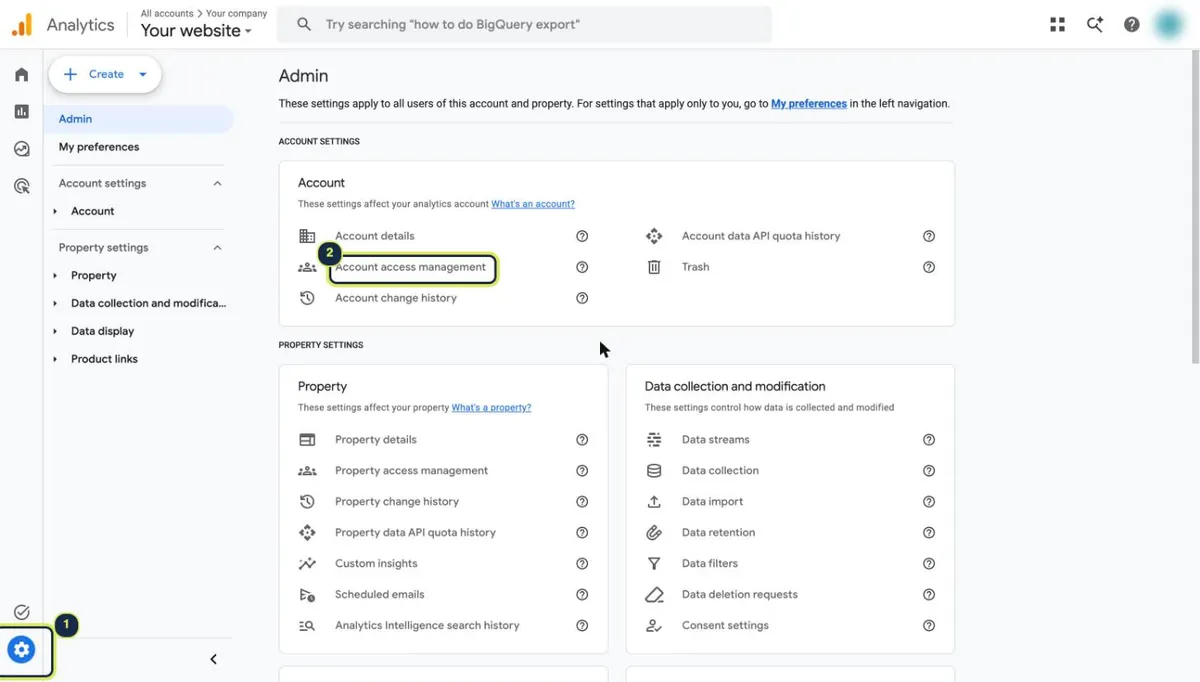
1 Admin · 2 Account access management - Click the blue + (3), then Add users (4).
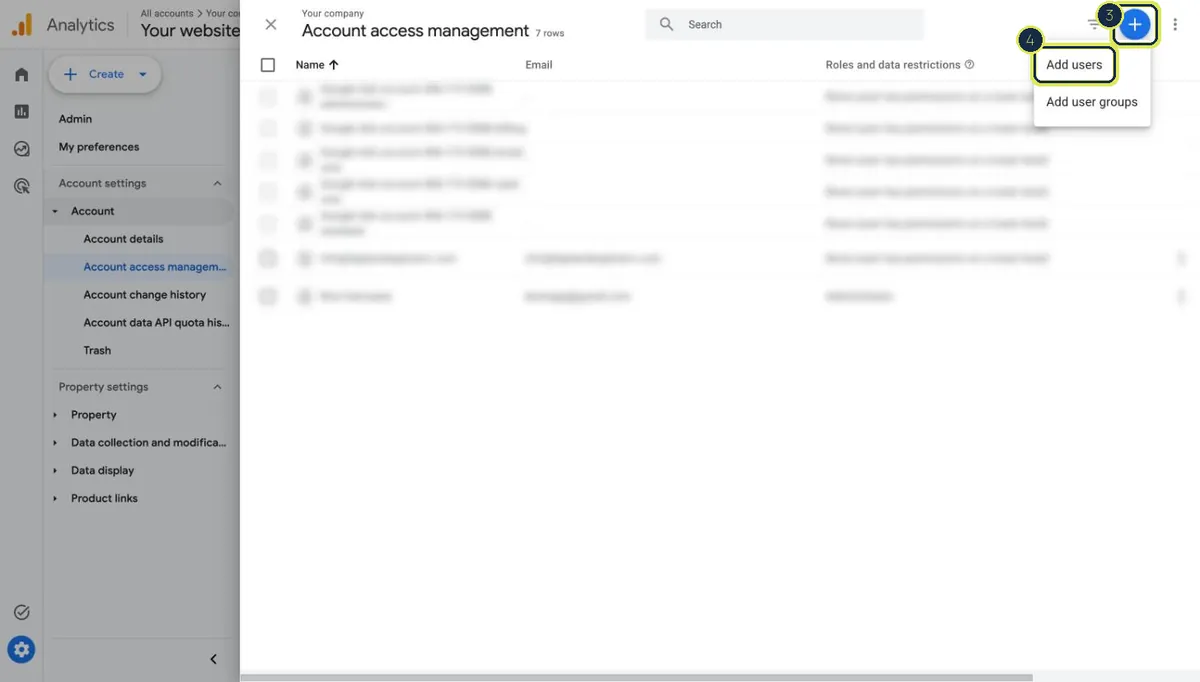
3 Plus button · 4 Add users - Type
info@haventodigital.com(5), choose the Editor role (6) and click Add (7).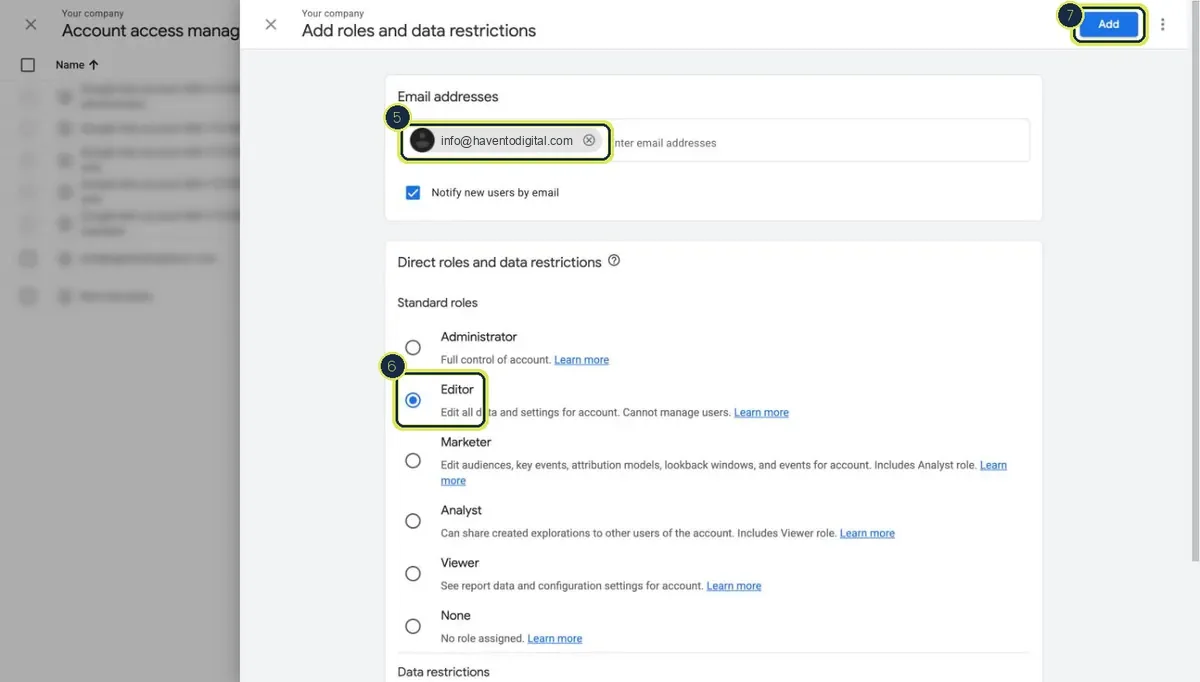
5 Email · 6 Editor · 7 Add
Google Search Console about 2 min
- Open Search Console and pick your website at the top left.
- Click Settings, then Users and permissions.
- Click Add user, type
info@haventodigital.com, choose Full and click Add.
Google Tag Manager about 2 min
No Tag Manager yet? Skip this step and tell us. We set it up in your own account.
- Open Tag Manager, pick your container, click Admin (1), then container User Management (2).
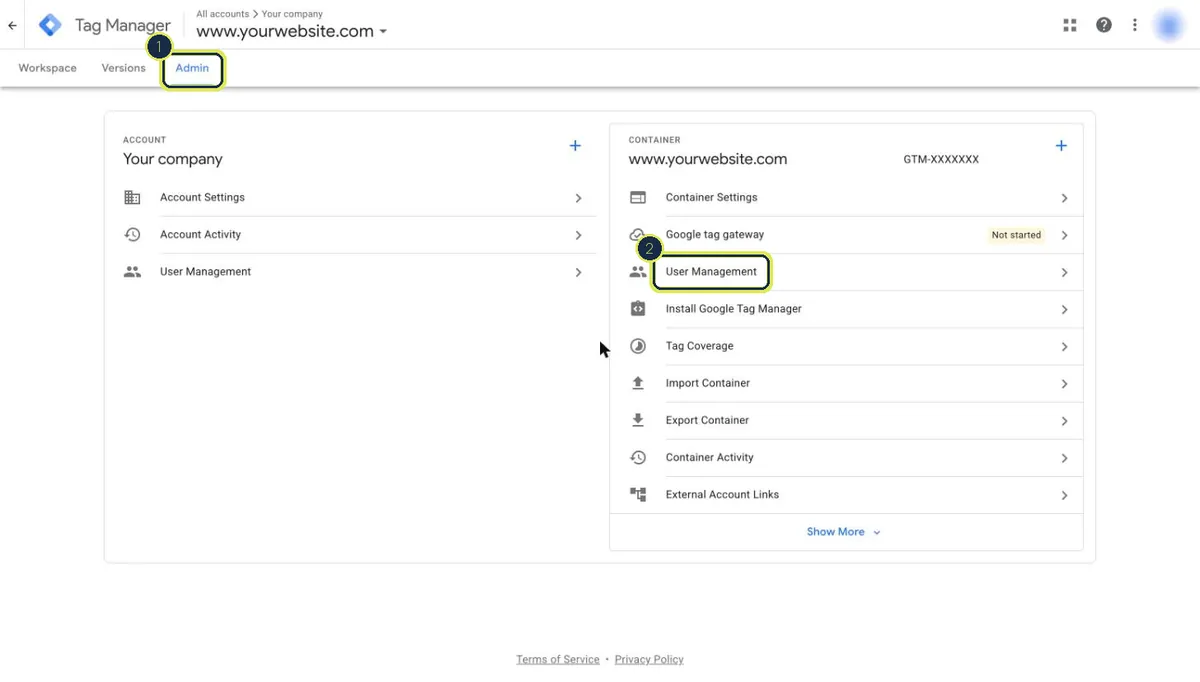
1 Admin · 2 User Management - Click the blue + (3), then Add users (4).
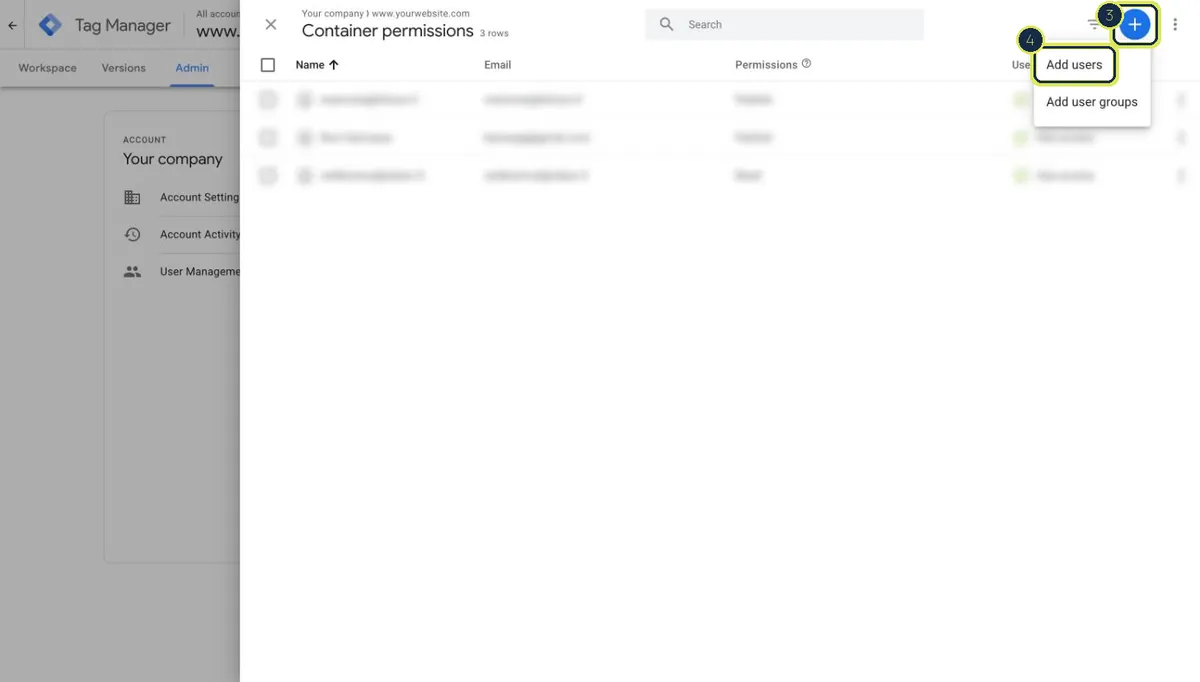
3 Plus button · 4 Add users - Type
info@haventodigital.com(5), tick Publish (6) and click Invite (7).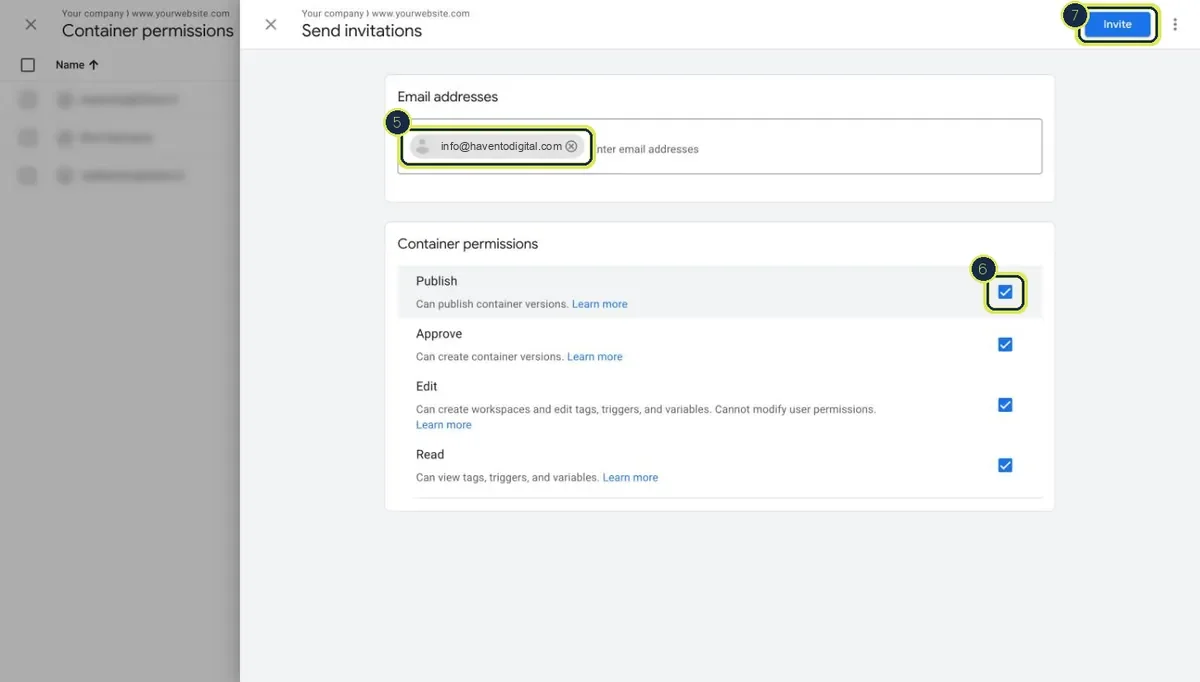
5 Email · 6 Publish · 7 Invite
Google Business Profile about 2 min
- Open Google Business Profile and pick your business.
- Open the ⋮ menu, then Business Profile settings › People and access.
- Click Add, type
info@haventodigital.com, choose Manager (not Primary owner) and click Invite.
Facebook and Instagram about 10 min
You need admin rights in your Meta business portfolio. There is no email to accept, and you can remove our access in one click.
- Open Meta Business settings, go to Users › Partners (1) and click Add (2).
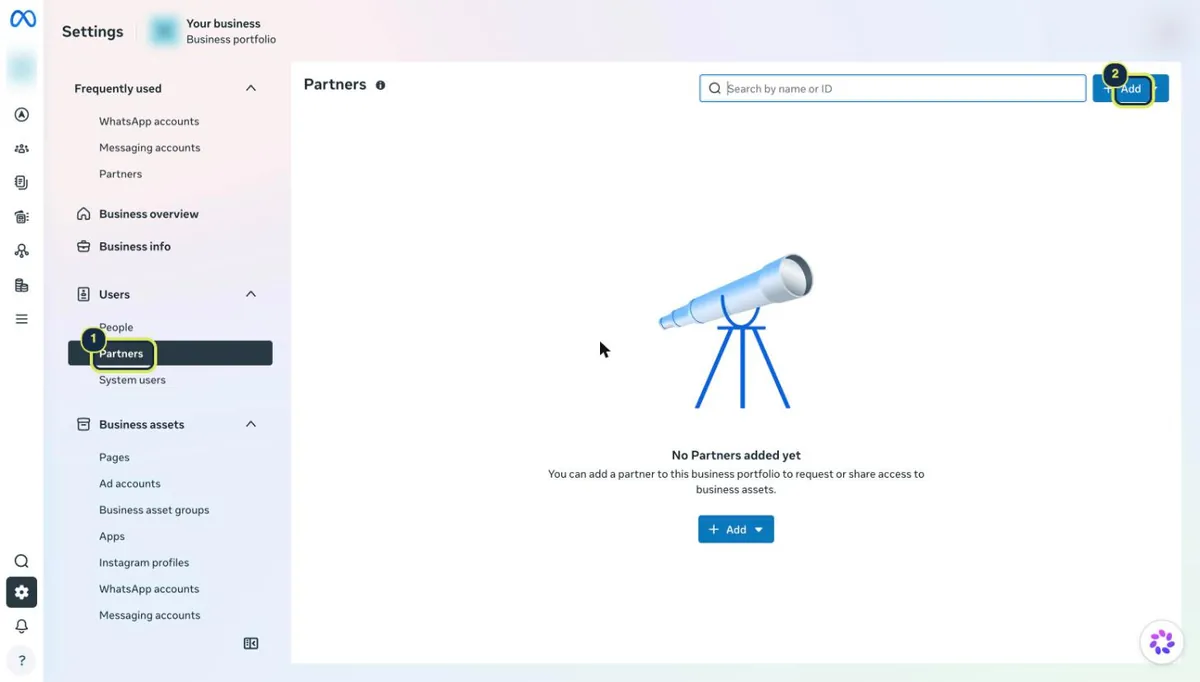
1 Partners · 2 Add - Choose Give a partner access to your assets (3).
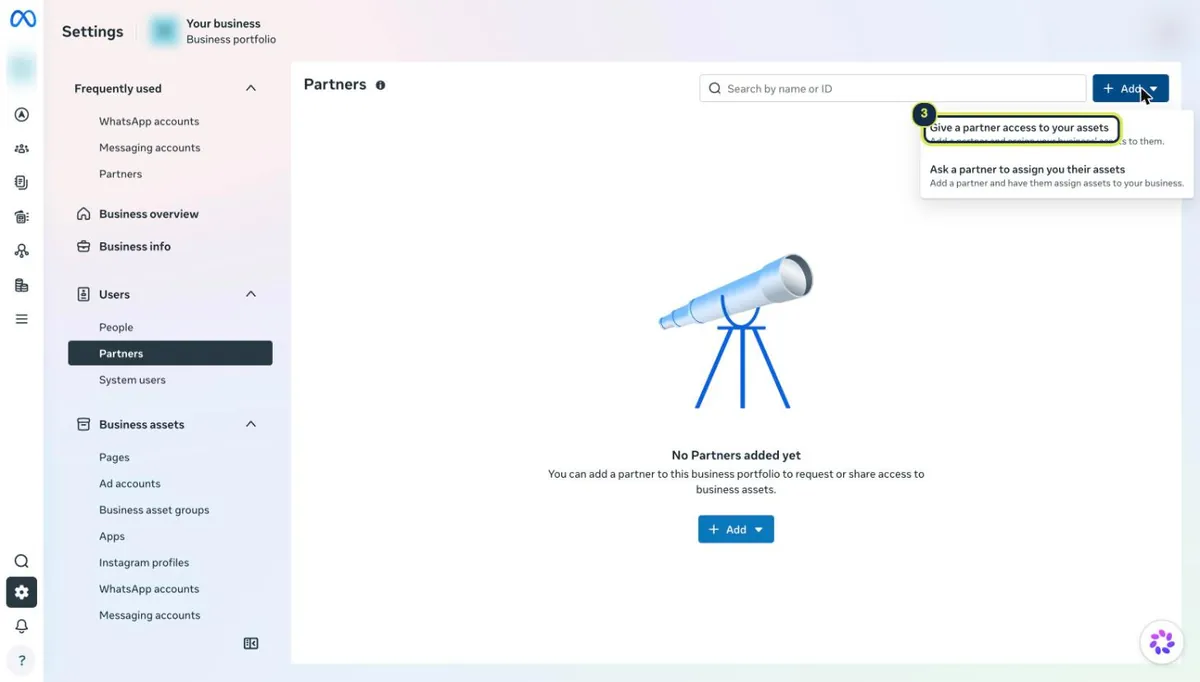
3 Give a partner access to your assets - Enter Business ID
2813895262315220(4) and click Next (5).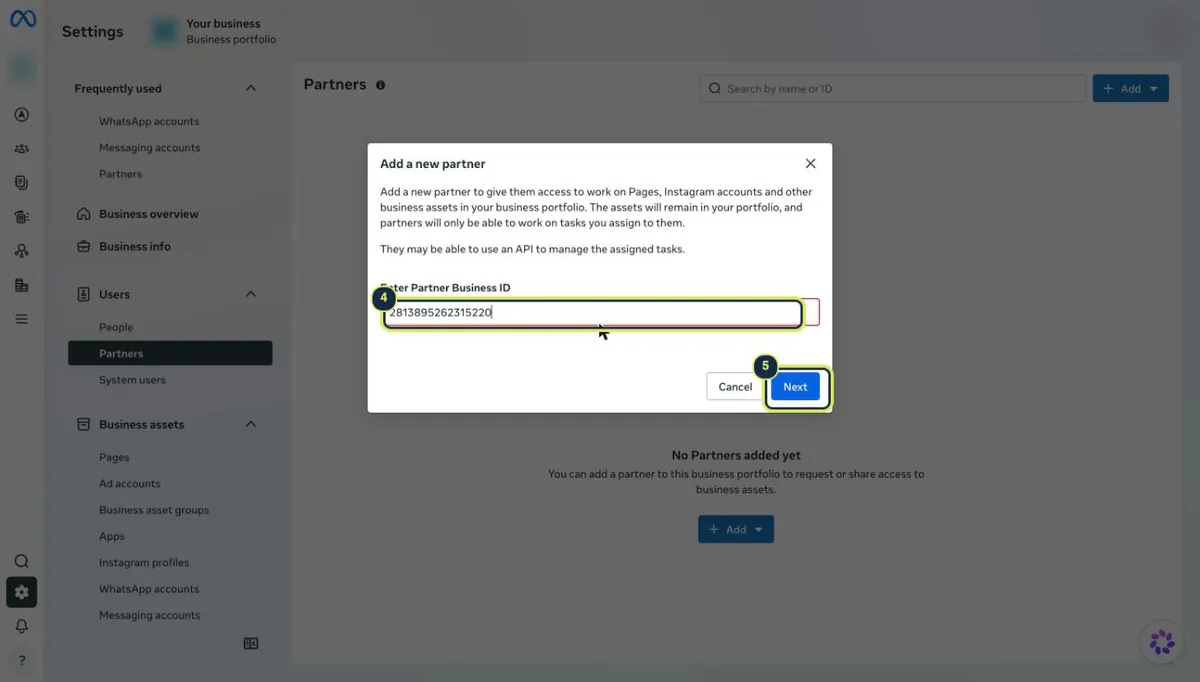
4 Business ID · 5 Next - Tick your ad account (Manage campaigns), your Facebook Page and Instagram account (Content, Ads, Insights) and your dataset or pixel (Manage), then click Save.
- Email us your ad account ID. It is in Business settings under Accounts › Ad accounts, a number like 123456789012345.
Google Ads about 5 min
Billing stays on your own card.
- In Google Ads click Admin (1), Access and security, then the Users tab and the + button.
- Type
info@haventodigital.com, choose access level Standard and click Send invitation. - Email us your 10-digit customer ID. It is at the top right in Google Ads, like 123-456-7890.
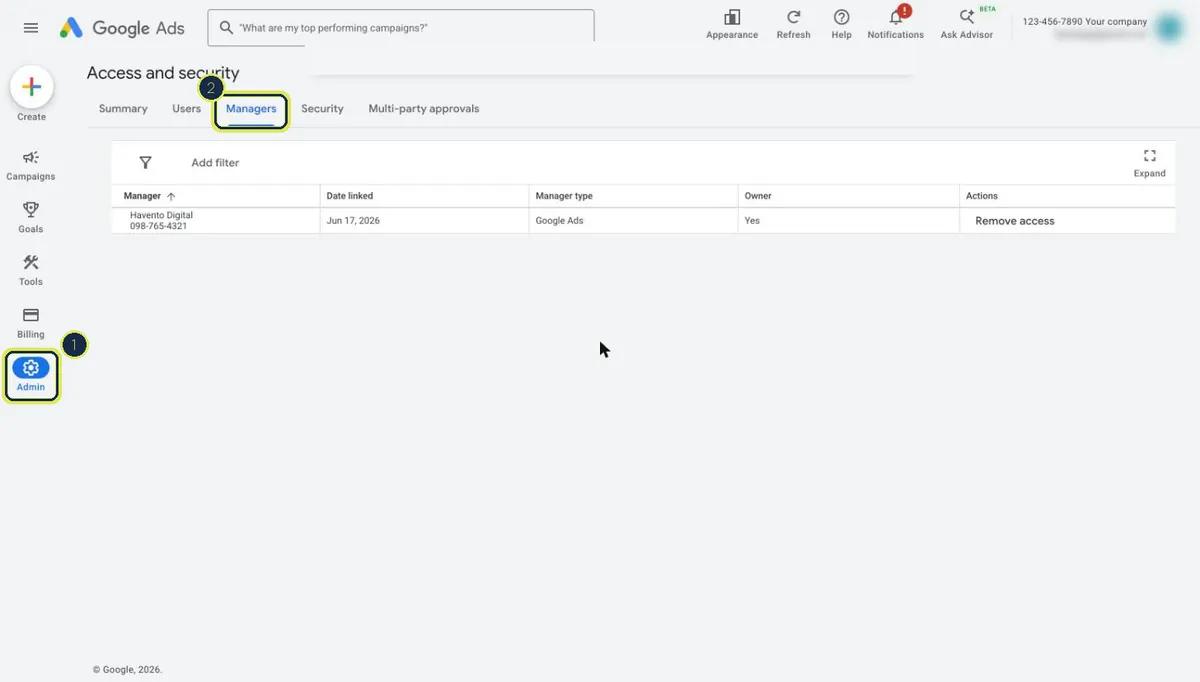
Work with a manager account already? Send only the customer ID instead. We send a link request, which you accept on the Managers tab (2) of the same page.
Website admin about 5 min
- Sign in to your website's admin (WordPress, Webflow, Shopify or similar).
- Find Users (WordPress), Workspace › Members (Webflow) or Settings › Users (Shopify).
- Add
info@haventodigital.comwith the Editor role, or the closest role that can edit pages. Please don't send passwords.
Domain and DNS about 5 min
Domain somewhere else than Cloudflare? Just tell us where. We send you the exact records to add.
- Open Cloudflare and go to Manage account › Members.
- Click Invite and type
info@haventodigital.com. - Choose your domain and a role that can edit DNS, then click Invite.
Done or stuck?
Email info@haventodigital.com when you have finished, or if a screen looks different from these pictures. We check every step on our side and tell you if something is missing.